
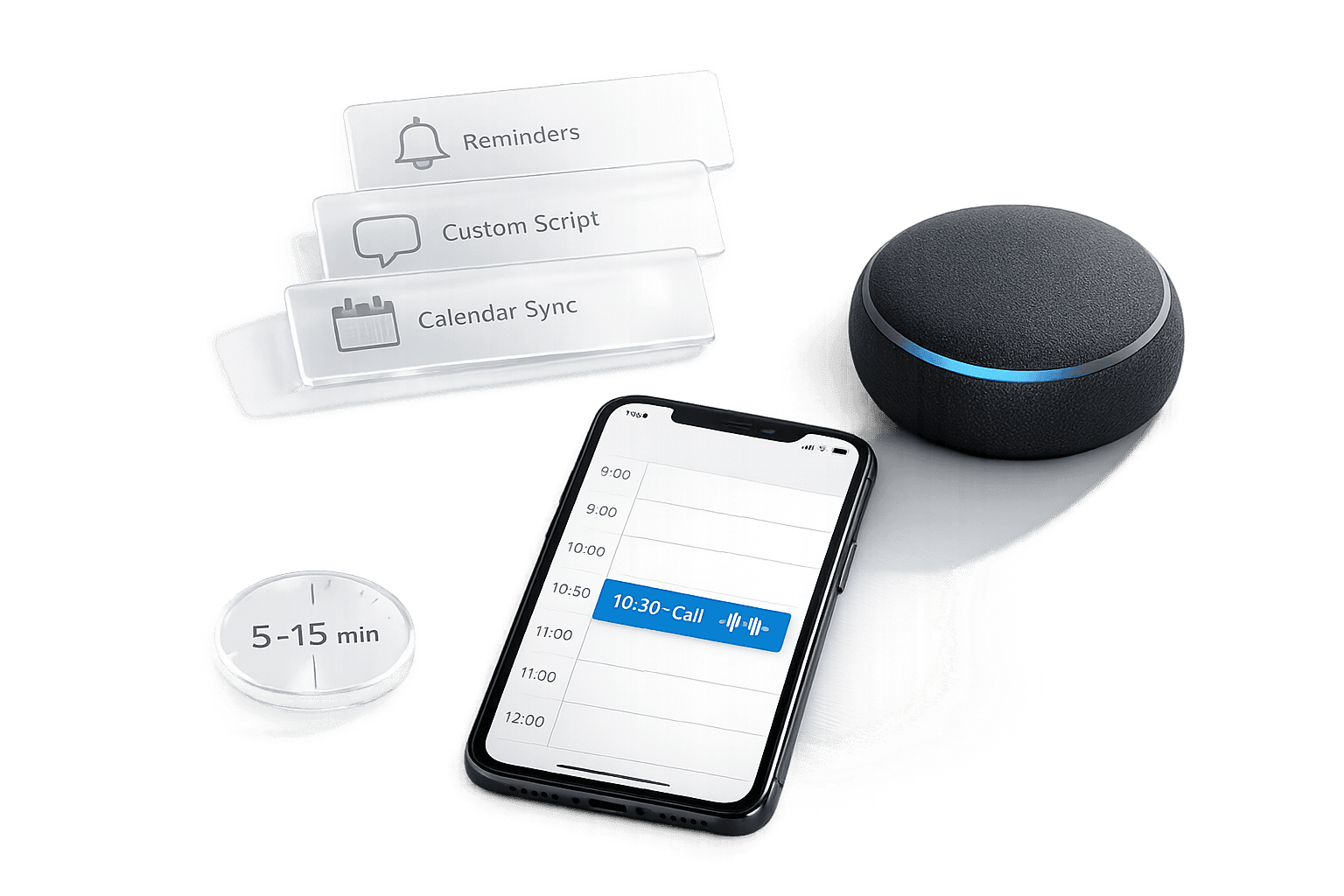
How to Set Up AI for SMB Appointment Booking
Save 90% on reception costs and never miss another booking with AI that works 24/7 and sets up in 15 minutes.

Written by
Adam Stewart
Key Points
- Connect AI to your calendar in 5-15 minutes using tools you already have
- Cut admin work by 60-80% with automated scheduling that handles the details
- Reduce no-shows by 30-50% with smart reminder systems that actually work
- Save thousands yearly compared to hiring a full-time receptionist
Missed calls can cost small businesses thousands of dollars in lost opportunities. AI-powered phone agents, like Dialzara, solve this by automating appointment bookings 24/7. With costs starting at just $29/month, these systems save up to 90% compared to hiring a receptionist. They manage unlimited calls, reduce no-shows by 30–50% with reminders, and integrate with tools like Google Calendar and CRMs for seamless scheduling.
Key Benefits:
- Cost savings: Avoid the $35,000–$50,000 annual expense of a receptionist.
- 24/7 availability: Handle calls even outside business hours.
- Improved efficiency: Drop admin workload by 60–80% and boost customer satisfaction by 40%.
Quick Setup Steps:
- Sign up for an account and provide business details.
- Choose an AI voice and connect a phone number.
- Sync calendars (Google, Outlook, etc.) and apps like Zapier.
- Customize scripts for intake questions and booking flows.
- Test and activate your AI agent.
AI appointment booking ensures your business never misses a call, saves money, and improves service quality. Ready to start? Dialzara’s setup takes just 5–15 minutes.
What You Need Before Getting Started
Before diving into Dialzara's quick setup for appointment booking, make sure you have a few essentials ready to go. Dialzara's setup process only takes about 5 minutes [2], and chances are, your business already has most of the required tools and details on hand. The key is being organized with your accounts and business information beforehand.
Tools and Accounts You’ll Need
To ensure a smooth experience, you'll need access to the following:
- Google Calendar: This is crucial for real-time scheduling [2]. It lets the AI work around your existing meetings and personal events. If you use Outlook or Apple Calendar, you'll need to upgrade to Dialzara's Business Plus plan to enable those integrations [2].
- Zapier Account: This optional tool connects Dialzara with your CRM and other apps [2]. It automates tasks like logging AI-booked appointments into your systems, saving you from manual data entry.
Here’s a quick breakdown of what’s required:
| Requirement Type | Necessary Item | Notes |
|---|---|---|
| Primary Account | Dialzara Account | Essential for building and hosting your AI agent [2] |
| Calendar System | Google Calendar | Native integration for real-time availability [2] |
| Advanced Calendar | Outlook / Apple Calendar | Available with the Business Plus plan [2] |
| Integration Tool | Zapier | Optional but connects to over 7,000 apps and CRMs [2] |
Organizing Your Business Details
To ensure your AI agent operates seamlessly, you’ll need to define some key business details:
- Operating Hours: Specify your availability, like weekdays from 10:00 AM to 4:00 PM. Don’t forget to include buffer times between appointments to avoid back-to-back scheduling [2].
- Customer Intake Questions: Prepare a list of questions for the AI to ask during calls. These might include the customer’s name, callback number, email, and reason for the appointment [2]. For example:
- Law firms might ask about case type and urgency.
- Healthcare providers could request insurance details and symptom descriptions.
- Top Call Reasons: Identify the 10 most common reasons customers contact your business. This ensures the AI is trained to handle the most frequent scenarios effectively [2].
With these tools and details in place, you’ll be ready to set up your Dialzara AI agent in no time.
sbb-itb-ef0082b
How to Set Up Dialzara for Appointment Booking
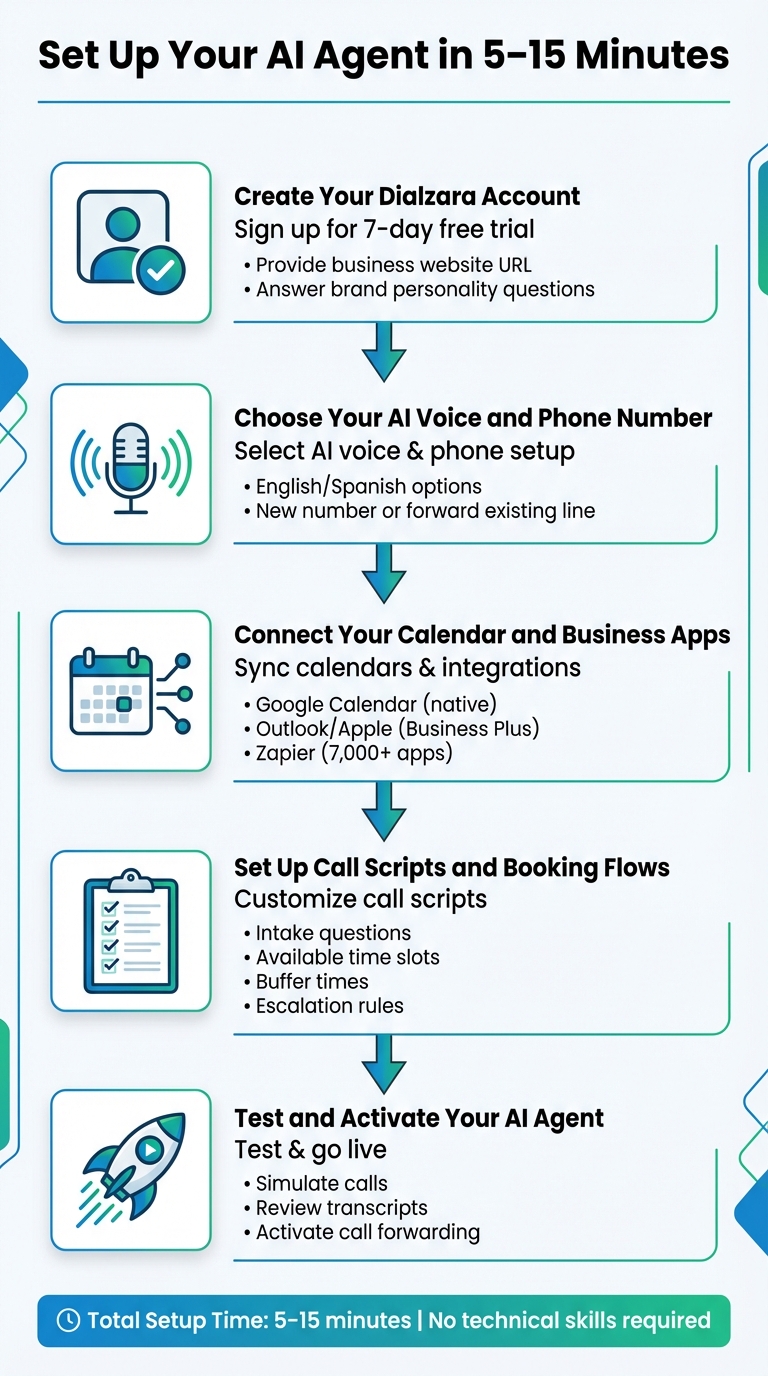
5-Step Setup Process for AI Appointment Booking with Dialzara
You can set up Dialzara in just 5–15 minutes, and you don’t need any technical skills to get started [1]. Here’s a simple guide to configure your AI agent for booking appointments.
Step 1: Create Your Dialzara Account
Start by signing up for a 7-day free trial on the Dialzara website [1]. During the setup, you’ll provide your business website URL so the system can automatically scan it. You’ll also answer a few quick questions to help the AI match its tone to your brand’s personality.
Step 2: Choose Your AI Voice and Phone Number
Pick an AI voice that fits your brand - options are available in both English and Spanish. Then, decide whether you want a new phone number or prefer to forward your existing line [1]. Be sure to test the voice options to ensure they sound natural and align with your preferences.
Step 3: Connect Your Calendar and Business Apps
Sync your Google Calendar to enable real-time scheduling. If you use Outlook or Apple Calendar, you can connect those through Business Plus. For added functionality, link Zapier to integrate with over 7,000 apps. This allows you to log appointments, send automated emails, and keep your data in sync [2].
Step 4: Set Up Call Scripts and Booking Flows
Customize your call scripts by specifying key details to collect, such as the caller’s name, contact information, and the reason for their appointment. If your business has specific needs, you can add custom intake questions tailored to your industry. Configure the system to show only available time slots, add buffer times between appointments, and set limits on bookings. You can also establish rules to escalate complex inquiries to human agents.
Step 5: Test and Activate Your AI Agent
Before going live, simulate calls to test the AI’s performance. Review call transcripts to ensure the tone and accuracy meet your expectations. Once everything checks out, activate call forwarding. Your Dialzara agent is now ready to handle appointment bookings smoothly [1].
Tips for Better Performance
After setting up your AI agent, fine-tuning specific settings can make a noticeable difference in its efficiency and accuracy.
Add Business-Specific Information
To improve your AI's responses, update it with detailed business-specific data and terminology. For example, include service descriptions, pricing details like "$99 initial consultation for legal services", and frequently asked questions. Adding key industry terms such as "escrow" or "deductible" helps your AI communicate more naturally and accurately. This step can cut customer interaction errors by up to 40% [3][4]. To do this, head to "AI Training" > "Business Knowledge", upload relevant PDFs or text files, tag them appropriately, and test the AI with queries like "What's your insurance booking process?" to ensure the information is being used correctly.
Set Up Client Intake Questions
Create structured intake questions to collect essential client details. Ask for information like the caller's full name, email address, preferred date and time (MM/DD/YYYY, 12-hour format), and the service they need. Tailor additional questions to your industry - for instance, healthcare providers might ask, "Do you have any medical history we should be aware of?" while real estate professionals could include, "What type of property are you interested in?" This approach helps capture 90% more qualified leads [4][6]. The collected data is mapped directly to fields in tools like Google Calendar or your CRM, streamlining the process and reducing manual data entry by 80%.
Configure Appointment Reminders
Reduce no-shows by setting up automated reminders via email and SMS. In the Dialzara dashboard, navigate to "Reminders & Follow-ups" and configure triggers, such as sending reminders 24 hours before an appointment. Personalize these reminders with specifics like, "Reminder: Your 2:00 PM consultation on 04/15/2026. Reply to confirm." Using multiple channels - email and SMS - can increase open rates to 90% [3][5]. Studies show that automated reminders can lower no-show rates by 40–60%, with some small transportation businesses reporting a 50% improvement when using dual-channel reminders.
These adjustments can significantly enhance your AI's performance and improve customer interactions.
Conclusion
Getting started with Dialzara is quick and straightforward - it takes less than 15 minutes and follows just five simple steps. Once activated, your AI assistant works 24/7, ensuring you never miss an appointment opportunity, even during off-hours [1].
Main Points to Remember
Here’s why Dialzara is a game-changer for your business:
- Unmatched call handling: Dialzara can manage up to 100 calls at once with no wait times, helping you avoid potential losses of over $1,200 per missed call [1].
- Cost-effective solution: At just $29/month, you’re looking at an annual cost of $348 - saving up to 90% compared to the expense of hiring a receptionist. Plus, you bypass the headaches of HR management.
- Customizable and efficient: Fine-tune the system with industry-specific details, structured intake forms, and automated reminders. These tweaks transform the AI into more than just an answering service - it becomes a seamless part of your business that reflects your style and terminology.
Track your progress by keeping an eye on appointment booking rates, cost savings, and the time your staff can redirect to more valuable tasks. As the AI learns and adapts to your scheduling needs, you can refine its setup to make it even more efficient. Ready to take the next step? Create your Dialzara account and start taking calls in minutes.
FAQs
Can it handle complex calls or transfer to my team?
Dialzara's AI phone agents are designed to handle even the trickiest calls while keeping your team in the loop. They don't just transfer calls - they provide your team with the full context and call history, so nothing gets lost in translation. These agents can also take messages, perform seamless call transfers, and connect callers to your team when necessary, ensuring a smooth and efficient call-handling process.
How does it prevent double-booking and respect my availability?
AI appointment booking systems, such as Dialzara, help you avoid double-booking by syncing your calendar in real time and performing automated checks. By connecting directly with tools like Google Calendar, the AI reviews your existing schedule before confirming any new appointments. Plus, you can add buffer times between bookings to account for travel or preparation. This way, your schedule stays organized and conflict-free without the hassle of constant manual updates.
What data can it send to my CRM after a call?
When the call wraps up, the AI appointment scheduling system can automatically send crucial details to your CRM. This includes appointment specifics, the caller's name, contact details, and any notes or preferences collected during the conversation. By syncing this data with your CRM, you ensure it stays current and accurate, making follow-ups smoother and enhancing overall customer management.
Summarize with AI
Related Posts
How SMBs Use AI to Handle High Call Volumes
AI phone systems give SMBs 24/7 call coverage, reduce missed calls, automate routing and bookings, and lower staffing costs.
AI-Powered Auto Service Appointment Scheduling
Discover how AI-powered auto service appointment scheduling can optimize booking, reduce no-shows, and improve customer satisfaction. Learn the key benefits and steps to implement AI scheduling in your auto service operations.
AI Advancements in Client Scheduling Software
Explore the latest AI advancements in client scheduling software, from chatbots to predictive analytics. Learn how businesses can leverage these tools to optimize schedules and elevate the client journey.
How AI Scheduling Saves Time for Small Businesses
AI scheduling tools streamline appointment management, enhance customer experience, and minimize errors, transforming small business operations.